
Digital Growth On Demand
Website Care, Development, & Digital Strategy for startups.
Clear pricing without complicated contracts. Backed by our satisfaction guarantee.
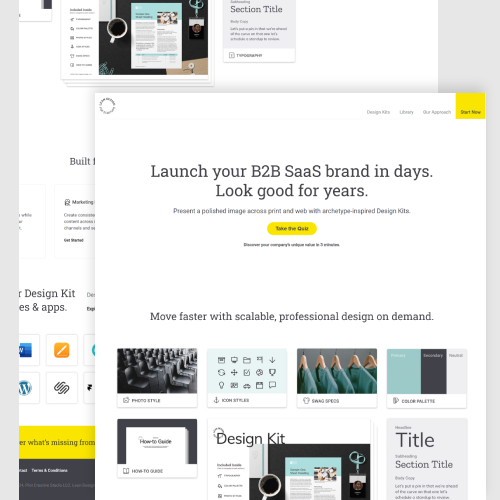
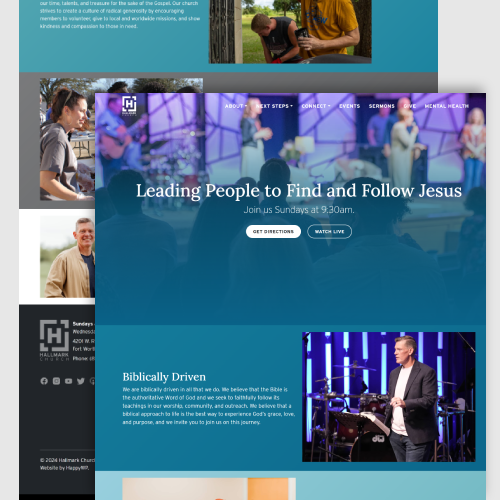
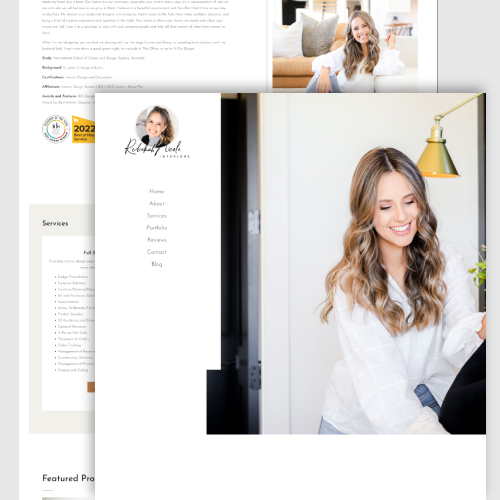
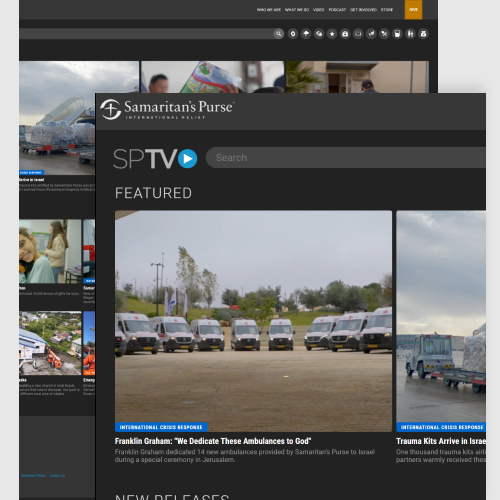
A few of our happy clients since 2007:









“HappyWP’s team are stellar professionals with rock-solid development skills and a phenomenal team-oriented attitude. HappyWP delivers high quality code that is on-time, on-scope, and on-budget. In my experience with HappyWP, there was never a challenge they weren’t willing to tackle!”
— Dr. Julie Armstrong

“HappyWP took us from a bad state to a highly modular and flexible website that we could primarily manage with non-technical resources. When we needed technical chops, or when we wanted to evolve available functionality, HappyWP was always there to problem solve and deliver high-quality solutions quickly. I can’t recommend HappyWP highly enough. You will love working with them!”
— George McLaughlin
✴︎ Less
waiting.
more results.
—No proposals. No SOWs. No pointless meetings.
We enable access to modern, frictionless digital growth.
Here’s how companies lose time + money:
🚪 A revolving door
The constant cycle of finding, recruiting, and training freelancers or full-time employees is exhausting. With multiple developers and strategists in and out of your company, technical debt piles up while the delays compound as each new hire is brought up to speed.
🐌 Slow execution
Most freelancers and agencies don’t have a process to get onboarded and wait for you to make the first move. The longer it takes to get onboarded, the longer before actual progress can be made. Slow execution not only brings frustration, but lost revenue.
🥕 The wrong motivator
Hourly-based relationships are stressful for everyone. It encourages freelancers to artifically extend projects and makes you, the customer, worried about how your dollars are being spent. This prioritizes short-term thinking over long-term succes.
💸 Expensive Overhead
Bonuses. Equity. Benefits. PTO. Taxes. Recruiting costs. All of these can inflate your development costs by almost 60% over our fractional development model.
Our model saves you time + money while putting your company’s success first:
🧘♂️ Peace of mind
Move beyond the never-ending cycle of recruitment and hiring with world-class talent that you can trust. We get to know your company on a deeper level over time so that we “just get it” and are able to quickly iterate and bring that context into every project.
⚡ Fast execution
We have a process to get to know your company and existing strategy or codebase quickly. We get the context needed to begin delivering quick wins. We’re here to do the work and deliver results. Fast.
🤝 A beautiful partnership
Our incentives align with your company’s long-term success. Our model is designed for companies that realize that no product is truly finished post-launch. If you see your website as more strategy than digital placeholder, we can help.
📉 Cost-effective solution
You get a team of world-class professionals without the inflated costs of a single full-time employee. Save $50K-$200K a year vs hiring your own full-time employees.
Care. Strategy. Development.
The better way to get results.

“Nathan is a gifted developer with a strong collaborative streak. Working with HappyWP, I am always impressed with their knack for novel solutions that 1) have great performance on the front end 2) a clean, native user experience in the CMS 3) scale our complex WordPress instances in a manageable way 4) are completed within a reasonable budget. What more could you ask for? HappyWP is awesome and our company has benefited immensely from their time and attention to our website.”
— David Millsaps
Redox Engine
Process
At HappyWP, you’re more than just a number in a CRM — you’re a valued partner. We’ll take the time to know you and understand your company’s heart and soul. With our personalized, white-glove care, you’ll be in trusted hands.
Step 1
Select a subscription
Subscribe to our Website Care, Digital Strategy, or Custom Development plan in less than 3 minutes.
Step 2
Accept your invite
We’ll invite you to Slack and our project management tool immediately. We’ll get you fully onboarded in accordance with your selected subscription.
Step 3
Get results.
You can start submitting tasks right away. Relax and let our developers do their thing while you track the progress.
If you subscribed to our Strategy plan, we’ll schedule your kickoff call and Digital Strategy Workshop.
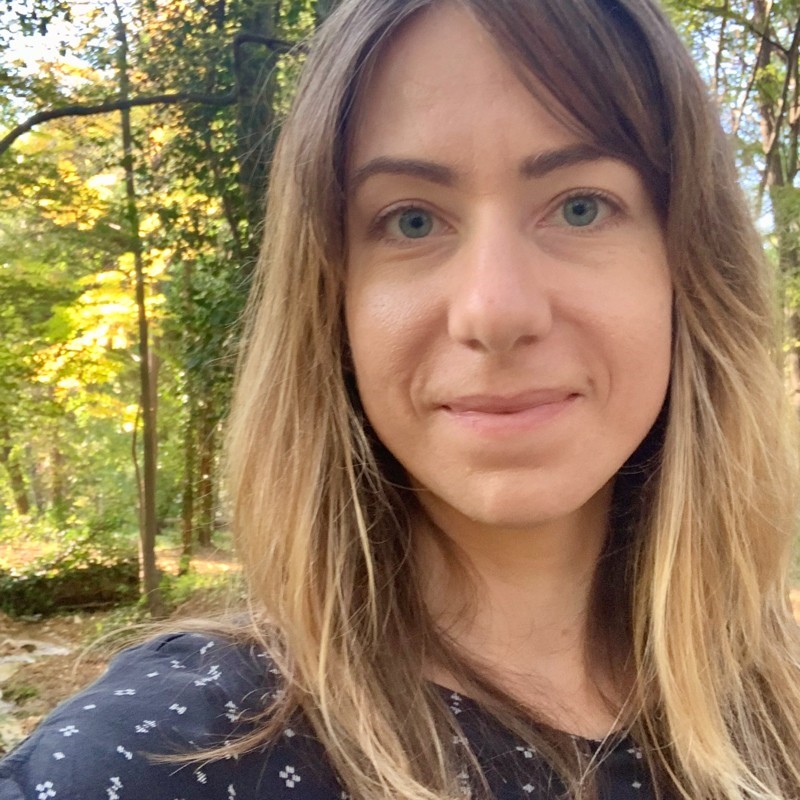
“We have worked together on numerous WordPress website projects to develop functionality that helped our clients add new revenue streams and present a polished, modern image. HappyWP is a great strategic resource that can quickly grasp project goals, advise on the technical approach given the context of the client’s current tech stack, and articulate the pros and cons of various approaches. I can always count on them for depth of knowledge, honest feedback, integrity and high quality work.”
— Kari Kay
Lean Design for Startups
Ready. Set. Grow.
All of our packages are backed by an unwavering satisfaction guarantee.
If something isn’t right, we work until you’re happy.
Care
WordPress care, maintenance, & support.
$399/mo.
Pause or cancel anytime.
What’s included:
- Daily website backups.
- Monthly WordPress & plugin updates.
- 24/7 website uptime monitoring.
- 24/7 security monitoring + hardening.
- Ongoing performance monitoring.
- Secure email delivery (GDPR friendly).
- Ongoing privacy policy compliance.
- Quarterly Accessibility Audit.
- 2 hours of Quick Support Requests.
- Async communication via Slack.
Available Add-ons:
- Hosting + Cloudflare DNS (+$50)
- Site Performance Optimization (+$100)
- Unlimited content updates (+$150)
- Up to 4 hours of Quick Support (+$200)
- Up to 8 hours of Quick Support (+$350)
Strategy
Custom digital strategy for your business.
$1,899/mo.
Pause or cancel anytime.
What’s included:
- A team of senior experts in the USA with decades of experience.
- Eliminate guesswork in your strategy.
- Get measurable targets and KPIs for you business.
- Starts with a Digital Strategy Workshop.
- Get a customized 6-12 month plan.
- Ongoing guidance and support.
- Async communication via Slack.
- Monthly meeting via Zoom.
Available Add-ons:
- Bi-weekly meeting via Zoom (+$500)
- Weekly meeting via Zoom (+$750)
Development
Full-Stack WordPress Development.
$5,999/mo.
Pause or cancel anytime.
What’s included:
- Unlimited Requests.
- Unlimited Revisions.
- Front-end WordPress development.
- Back-end WordPress development.
- A team of senior experts in the USA with decades of experience.
- Fast turnaround.
- One request at a time.
- For one WordPress website.
- Async communication via Slack.
Available Add-ons:
- Bi-weekly meeting via Zoom (+$500)
- Unlimited WordPress websites (+$1,200)
- Design tasks (+$2,999)
- Two requests at a time (+$3,599)
Have a custom project?
Frequently
Asked
Questions
Is there a request limit?
No, there are no limits to how many requests you can add. Each task will be completed one by one, in order of your priority.
How fast are requests completed?
On average, most requests are completed within three days or less. More complex requests or large projects will take longer and are typically broken down into smaller sprints and tasks.
How much time am I actually getting for my money?
We take a value-based approach. We ensure that our work is of the highest standards by a) moving quickly but not rushing, b) working with a team of incredibly capable developers, c) following an established process with checks and balances.
What does the onboarding process look like?
After you subscribe, you will receive an email with a link to your customer portal where you can manage your subscription. You will also receive two invites: one to our Slack where you will have a dedicated channel, and one to our project management tool where you can submit tasks.
How do we communicate?
We primarily communicate using our project management platform as well as over Slack. Zoom meetings are included in the Strategy subscription and are available as an add-on to our Developer subscription.
Why Wouldn’t I just hire my own developer or STRATEGIST?
You could, but quality, process, and communication are always a risk. In our experience, it often doesn’t end well unless you have experience managing freelancers, which is a headache in itself. We remove all the risk by managing the process and quality checks for you. Also, the annual cost of a full-time senior-level developer or digital strategist now exceeds $100,000, plus benefits (and good luck finding one available).
How do I know you won’t delay the turnaround time?
Why would we? The more great work we can do for our clients, the better! Every time we deliver quickly is an opportunity to expand our brand and make you happy.
What is your refund policy?
While you’re welcome to cancel your subscription, we do not offer refunds. Request a cancelation in writing at least 48 hours before your subscription renews.

“Nathan is a rockstar when it comes to WordPress development. He and his amazing team at HappyWP have exceptional skills and have applied them with full dedication to our website. Their remarkable feats include seamlessly integrating a massive database of 7000+ pages and playing an instrumental role in our successful website redesign (x2) and rebranding. Their talent, professionalism, and ability to overcome challenges are truly exceptional.”
— Susan Metz
Redox Engine

“I’ve had the opportunity to work with Nathan on many projects varying in scope and size, and the diligent work ethic he brings to the team produces successful results time and time again. He is an extremely talented and skilled programmer, whose problem-solving skills continue to impress and often exceed expectations.”
— Carly Falotico

“I also am slightly reluctant to recommend HappyWP – but only because I’d like to keep their services freely available for myself. Since that would be awesomely selfish of me, here goes:
— Annie Sisk
You can’t do better than hiring Nathan and HappyWP. Period. They will do what you hire them to do, for a reasonable price, in an expert manner, and on time. Then, they’ll exceed your expectations.
I recommend their services to any WordPress site owner without reservation or qualification of any kind.”

“Nathan, is that rare breed of creative sagacity and business mogul; The kind of professional you hope to work with but never find. His rich insight into UI, UIX and industry trends means that he always has an intuitive touch on the pulse of the web and what the user wants. This is invalueable considering it’s always served with his classic timeliness and can-do attitude.”
— Pierce Brantley
Let’s talk.
Hey there! 👋

Meet Nathan Parikh- the owner and lead developer here at HappyWP. With 16+ years of experience in WordPress development, he’s a pro at helping companies achieve their online goals. At HappyWP, he’s all about understanding what makes your company special, crafting quality code, and delivering the most exceptional client experiences. He’s not just a developer, though, he’s an advisor who can provide insights on best practices and set you up for long-term success with deep knowledge and experience in the WordPress ecosystem.